


Philips TV Remote
4.4120.00 Reviews
App Specs
- Version
- 1.0.25
- Updated On
- License
- Free
- Downloads
- 500,000+
- Developer
- Mobile Tools Shop
- Categories
- House & Home
- Platform
- Android
Screenshots
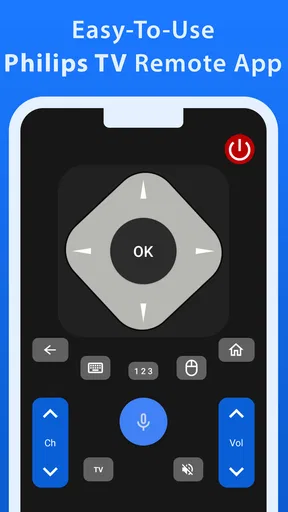
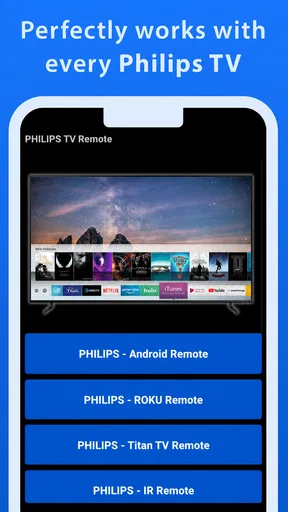
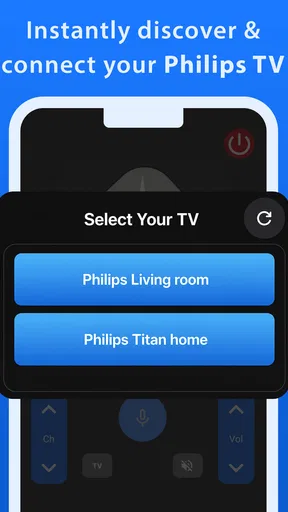
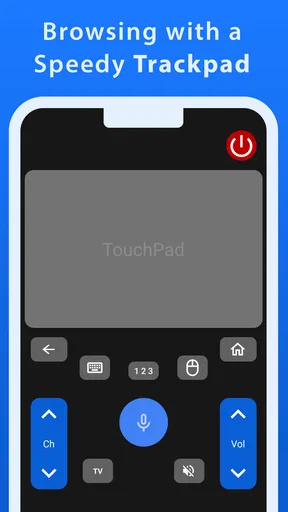
 Analysis by AppCompare
I find a phone remote most useful when it solves a specific annoyance, not when it promises to replace every control in the house. With Philips TV Remote, that means having a backup close at hand when the physical remote has gone missing, and a more convenient way to enter text while browsing. Whether it earns a place on your phone depends on how well it fits your TV and the way you watch.
What the free download means in practice
The app is free to download, so trying it does not require an upfront payment. It does include optional in-app purchases, with items priced from $0.99 to $22.99, so free access and every possible paid option are not the same thing. I would start by checking whether the controls I actually need work for my setup before spending anything.
That distinction matters for a remote app: the basic reason to install one is convenience, and paying only makes sense if an available extra solves a problem you genuinely have. I would not treat the presence of in-app purchases as proof that the core remote function requires a purchase, nor assume that every optional item is useful to every owner.
Where the convenience is most useful
The clearest value is having a spare control on a device that is already usually nearby. If the physical remote has slipped between sofa cushions, or someone else has taken it to another room, a phone can get you through the immediate interruption. That is a small benefit, but it is the kind that can make an app worth keeping.
Typing is another practical advantage. Entering a search phrase with a phone keyboard can be less tedious than moving through letters one at a time with a TV remote. I would especially appreciate that when searching for a title or correcting a misspelling, where a few awkward button presses can turn a quick search into a chore.
There is a trade-off, though: using a phone means unlocking it, opening the app and keeping it within reach. A physical remote is often faster for a single volume adjustment, particularly if it is already in your hand. I see the app as a useful alternative for the moments when the phone is more convenient, not an automatic improvement over every button on a dedicated remote.
How it fits into a real living room
Imagine settling in for a film and discovering the remote is missing just as you want to search for something to watch. If the app connects successfully to your TV, you can use the phone instead of pausing the evening to hunt through the room. The same routine can help when you need to enter a title, but it depends on the phone and television being connected as required for setup.
Worth Reading Before You Choose

EA SPORTS FC Mobile 26 Is a Bigger Football Game, but It Takes Time

Flipboard Shows What News Apps Must Do Beyond the Feed

Switching to Android Auto Means Rethinking Your Driving Routine

Google Calendar Makes a Crowded Week Easier to Manage

Ludo King Makes the Most of the Minutes Between Plans

Baby Panda World Brings Quick Play to Modern Phones, but Its Game Library Feels Busy
Getting started and checking compatibility
Ever found yourself frantically searching for the TV remote, only to realize it's buried somewhere in the couch cushions? Well, let me introduce you to the Philips TV Remote app. It's like having a digital genie that transforms your smartphone into a universal remote, making those remote control woes a thing of the past.
Setting up the Philips TV Remote app is a breeze. First things first, you’ll need to ensure that your smartphone and Philips TV are connected to the same Wi-Fi network. Once that’s sorted, download the app from the App Store or Google Play. Installation is swift, and before you know it, you're ready to roll.
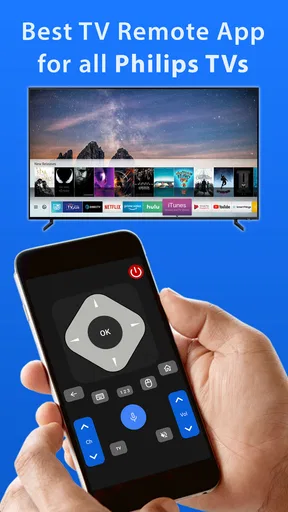
Upon launching the app, you'll be greeted with a simple and intuitive interface. The design is clean and minimalistic, which is a breath of fresh air amid the cluttered interfaces of many other apps. You can easily navigate through the app without feeling overwhelmed.
Compatibility is the first thing I would check before relying on a phone as the household’s only remote. The app is built around Philips TVs, but that does not make it a general controller for every television. If you are buying a TV from another brand, a manufacturer-specific remote app or the original remote is the more sensible choice. For a Philips owner, I would test the connection and the controls you use most before putting the physical remote away.
If you share the television, it is also worth trying the app from the phone that will be used most often. That gives you a realistic feel for the setup rather than assuming that a successful installation automatically means the whole household will prefer it. Keep the usual remote accessible until you know the app is dependable in your own routine.
Controls, voice input and everyday trade-offs
The app is packed with a plethora of features that make it incredibly versatile. One of the standout features is the ability to control multiple devices. Whether you’ve got a Philips TV, sound system, or even Philips lighting, this app has got you covered.
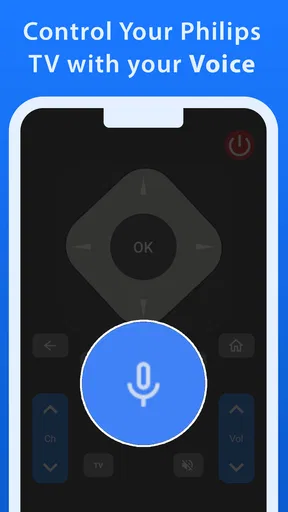
Another nifty feature is the voice control. Simply tap the microphone icon, and you can tell your TV what to do. It's particularly handy when you're too comfortable to move or when you can't find the right button in the dark. Plus, there's a keyboard feature that simplifies typing when searching for your favorite shows or movies.
For practical use, I would treat voice input and the keyboard as shortcuts rather than replacements for every control. Voice can be convenient when you know what you want to request, while typed searches are better when a title is unfamiliar or needs precise spelling. If you would rather not speak to your TV, the keyboard still gives the phone a clear role in browsing.
There is a useful distinction between having a phone-based controller and having one interface for every part of a Philips home. The app may be appealing if you already use compatible Philips equipment, but I would not choose it on the assumption that every device in a mixed-brand setup will be covered. If your living room relies on equipment from several manufacturers, separate controls may remain necessary.
Voice control also has a situational downside: it is not always the right choice in a shared room, late at night, or when other people are talking. In those moments, tapping a control or typing a search is less disruptive. I would keep both interaction styles in mind and use whichever is comfortable, rather than expecting voice commands to be the fastest option every time.
Integration claims and choosing the right alternative
One of the things I love about the Philips TV Remote app is how seamlessly it integrates with other smart home devices. It’s like the app understands the modern-day household, where connectivity and integration are key. You can easily switch from controlling your TV to adjusting your smart lights, all within the same app.
Not to mention, the app’s compatibility with various Philips models is quite impressive. Whether you have the latest Philips TV or an older model, you’re likely covered. And for those of us who love binge-watching, the app’s ability to create shortcuts for our favorite channels and streaming services is a game-changer.
I would still make compatibility a hands-on check rather than a reason to assume that every Philips model or smart-home device will behave alike. A quick test can show whether the TV appears, whether the commands you use respond, and whether switching between controls suits your setup. That is more useful than relying on a feature list alone, especially in a home where devices have been added over time.
The usual alternatives each have a place. The physical remote is the straightforward choice for quick adjustments and does not ask you to reach for or unlock a phone. A phone’s built-in remote tools, where available, may be convenient for other devices, but they are not automatically a better match for a Philips TV. A dedicated universal remote can make more sense when one controller must handle a mix of brands; this app is the more focused option when the television is Philips and phone control is appealing.
Shortcuts, if they are available in the way described, are most valuable when they save repeated navigation rather than merely adding another screen to manage. I would set up only the channels or services I visit often, then see whether reaching them through the app is actually faster than using the TV’s existing controls. A short, familiar list is easier to use than trying to turn every occasional destination into a shortcut.
Another practical tip is to think about where the phone will be during viewing. If it is charging across the room, the app will not help with an immediate adjustment. If it is already beside you, it can be a handy backup. That simple difference is why I would judge the app by my habits, not just by the number of functions it offers.
Responsiveness, battery and day-to-day reliability
The user experience is smooth and satisfying. The app is responsive, with minimal lag between commands, which is crucial for maintaining that immersive viewing experience. Plus, the app’s updates are frequent and efficient, ensuring that any bugs are swiftly squashed, and new features are constantly introduced.
One thing worth mentioning is the app's battery consumption. It’s surprisingly efficient, so you don’t have to worry about it draining your phone's battery life during a long movie marathon.
Even when a remote app feels responsive, I would judge it by the commands I use most: changing volume, moving through menus and getting back to a program without unnecessary delay. If one action feels less natural than a physical button, that is a good reason to keep the original remote nearby. A backup should reduce friction, not create a new routine that is harder than the one it replaces.
Network dependence is another everyday consideration because the setup calls for the phone and TV to share a Wi-Fi network. If the household network changes or the phone is connected differently, the app may not be ready at the moment you need it. I would check that the connection is working before a movie night or a guest visit, rather than discovering a setup issue when everyone is waiting.
For that reason, I would not rely on the app as the only way to control the TV. A physical remote remains a sensible fallback if the phone is out of battery, the network is unavailable, or the app needs attention. Keeping both options available is less elegant than a single-control setup, but more practical for a shared living room.
Version 1.0.12 is the current release, and the app supports Android 6.0 or later. It is rated for Everyone, which makes its intended audience broad, though the useful question for any household is still whether the particular TV and phone work well together. Mobile Tools Shop is the developer behind this House & Home app.
Who should keep it, and who should pass
I can see this being a good fit for Philips TV owners who regularly misplace the remote, search for programs by title, or prefer using a phone keyboard. It is also a reasonable backup for a household where the remote gets carried between rooms. Its appeal is practical rather than essential: it can make familiar tasks easier, but it does not change what the TV is for.
I would skip it if you do not own a Philips TV, if you rarely use a smartphone while watching, or if a physical remote already does everything you need with less effort. It may also be a poor fit if you expect one app to control a mixed-brand collection without checking compatibility first. In those cases, the original remote or a universal controller may better match the job.
Among people who have tried it, the app has a 4.4 average from around 2,400 ratings, and it has been installed over 100,000 times. Those figures suggest that it has found an audience, but they do not tell me whether it will connect smoothly to a particular TV. I would give more weight to a short test with my own setup than to popularity alone.
Final thoughts on its value
In conclusion, the Philips TV Remote app is a must-have for anyone seeking convenience and efficiency in their home entertainment setup. It simplifies the process of managing your devices and enhances your viewing experience with its multitude of features. Whether you’re a tech enthusiast or just someone who appreciates a good TV binge, this app is sure to make your life a little easier.
So, if you're tired of juggling multiple remotes or simply want to upgrade your home setup, give the Philips TV Remote app a try. Trust me, once you’ve experienced the convenience, you’ll wonder how you ever lived without it!
My verdict is more measured: since downloading is free, I think it is worth trying if you own a Philips TV and want phone-based control, especially for searches and as a backup. I would not pay for an optional item until I knew exactly what it adds and that it solves a real need. With the app’s modest role clear, the decision is straightforward: test it alongside your normal remote, keep it if it saves effort, and skip it if your phone feels like one more thing to manage.
Pros
- Intuitive user interface for easy navigation.
- Seamless connection with Philips smart TVs.
- Customizable remote layout and buttons.
- Voice control integration enhances usability.
- Supports multiple devices simultaneously.
Cons
- Limited compatibility with non-Philips TVs.
- Occasional lag in response time.
- Requires stable Wi-Fi for best performance.
- Some features locked behind premium version.
- Setup process can be confusing for beginners.
FAQs for Philips TV Remote
What features does the Philips TV Remote app offer?
The Philips TV Remote app provides a wide range of features, including the ability to control your Philips TV from your smartphone, access to a virtual keyboard for easy text input, and quick access to your favorite channels and apps. It also allows users to adjust volume, change channels, and navigate menus seamlessly.
Is the Philips TV Remote app compatible with all Philips TVs?
The Philips TV Remote app is compatible with most Philips TVs, especially newer models that support smart TV functionalities. However, it’s crucial to check the app’s description on the App Store or Google Play for compatibility details with your specific TV model to ensure it will work as expected.
How do I connect the Philips TV Remote app to my TV?
To connect the Philips TV Remote app to your TV, ensure both devices are on the same Wi-Fi network. Open the app and follow the on-screen instructions to pair it with your TV. Typically, this involves selecting your TV from a list of available devices and verifying a connection code displayed on the screen.
Are there any costs associated with using the Philips TV Remote app?
The Philips TV Remote app is generally free to download and use. However, some features might require an in-app purchase or subscription, particularly if they offer advanced functionalities. It's advisable to check the app’s store listing for any potential costs before downloading.
What should I do if the Philips TV Remote app isn’t working properly?
If the Philips TV Remote app is not functioning correctly, first ensure both your smartphone and TV are connected to the same network. Restart both devices and check for any available updates for the app or your TV’s firmware. If problems persist, consult the app’s support section or contact Philips customer support for assistance.


